Lead capture and sale flow
This guide provides a comprehensive, step-by-step overview for onboarding members using the Glofox API.
POST: Register a member
To register a member with a specific location, use the endpoints detailed in the Users section of the API reference.
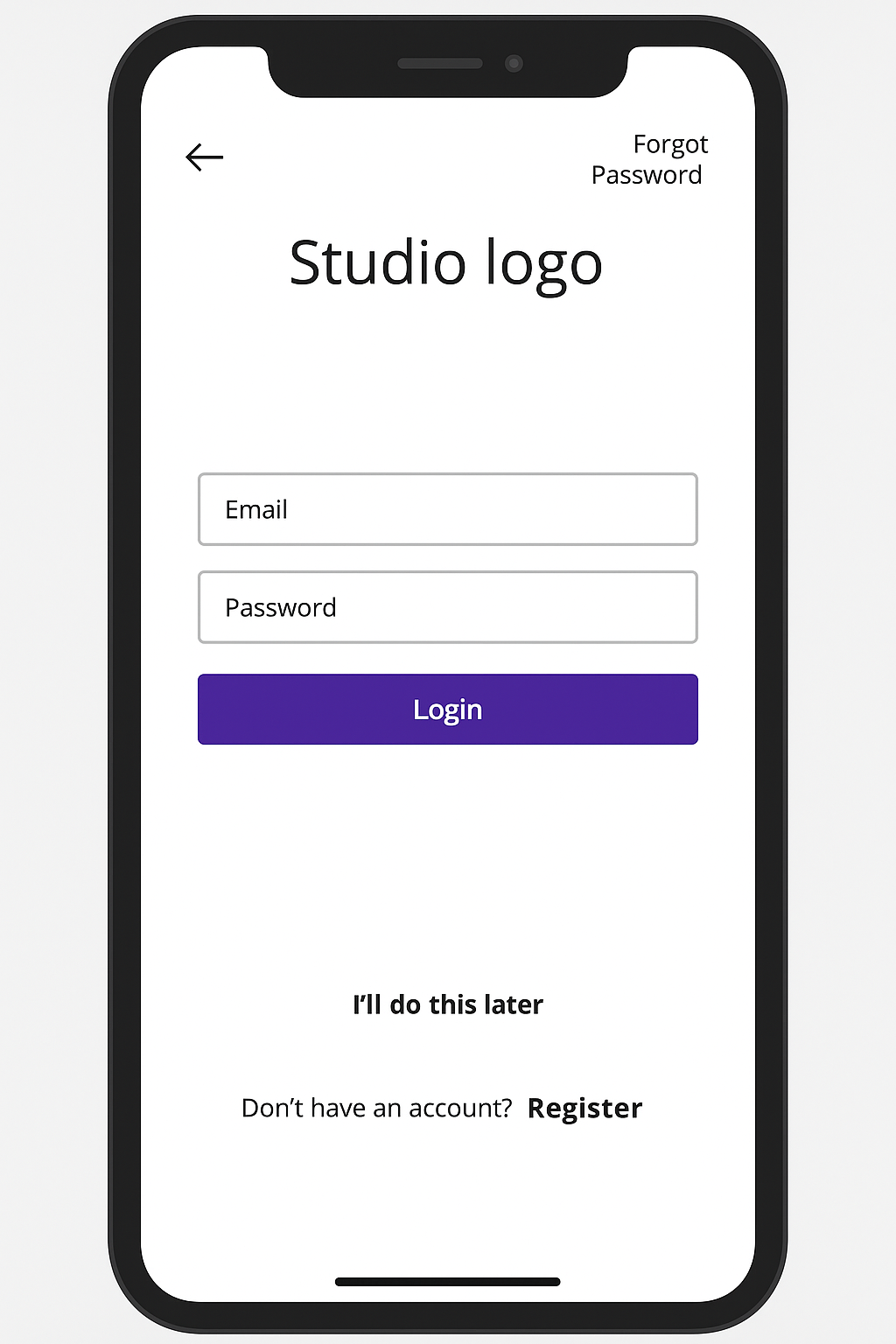
To create a new member within a particular studio, submit a request to the following endpoint:
- Endpoint:
/2.0/register - Method:
POST - Content-Type:
application/json
Required Headers
{
  "x-glofox-branch-id": "{branch_id}",
  "x-api-key": "{api_key}",
  "x-glofox-api-token": "{api_token}"
}
Request Body
{
  "first_name": "aliquip nostrud",
  "last_name": "consequat quis ut",
  "email": "john@test.com",
  "type": "MEMBER",
  "password": "password_$",
  "lead_status": "LEAD",
  "phone": "dolore adipisicing",
  "emergency_contact": "aliquip deserunt",
  "access_barcode": "Duis sed consectetur anim",
  "birth": "occaecat aute",
  "consent": {
    "email": { "active": true },
    "sms": { "active": false },
    "phone_call": { "active": false },
    "whatsapp": { "active": false }
  }
}
Note
When a country or location uses a different consent schema, consent can be specified per purpose (marketing, mixed, transactional) for all channels in the request. See the UserConsent schema in the API reference.
Registration flag
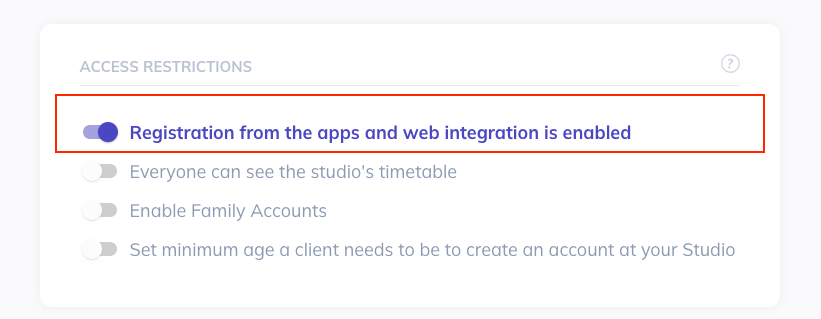
To create a new member within a particular studio, turn on the Registration from the apps and web integration is enabled option. Otherwise, the app will show the following error message:
This branch does not allow pay as you go.
Date of birth
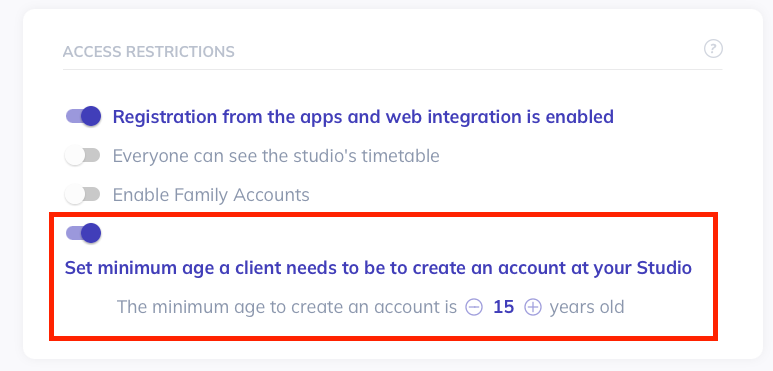
When registering a new member, the system requires the date of birth only when the Set minimum age a client needs to be to create an account in your Studio option is enabled. When this option is disabled, the date of birth is optional. You can find this option under Settings > Clients.
Important
You will need to add the minimum age value.
GET: Waiver template
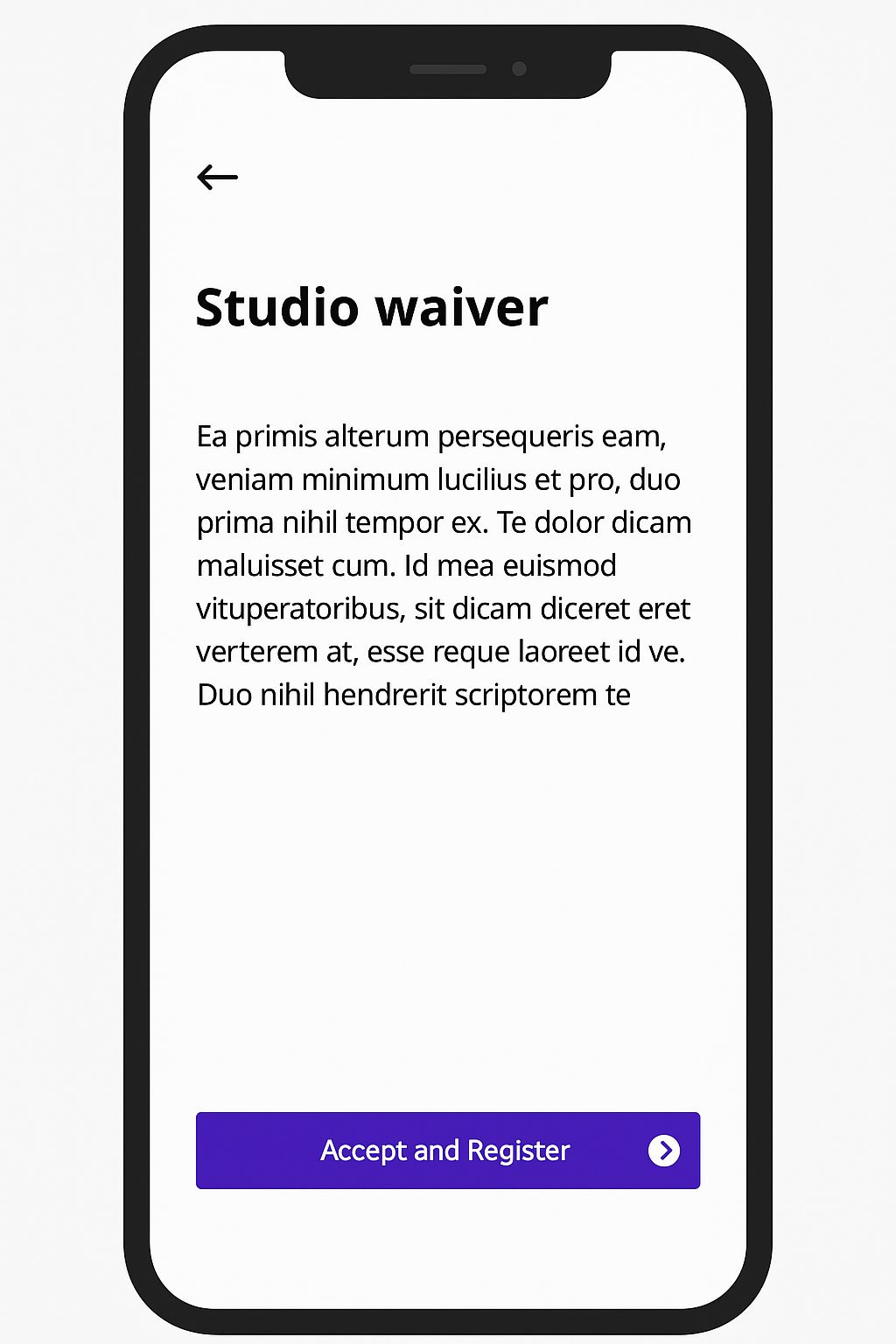
To present the waiver agreement to a member, retrieve the template using the member-authenticated trigger.
- Endpoint:
/2.3/branches/{branchId}/agreements/template/trigger/{trigger} - Method:
GET - Content-Type:
application/json
Memberships
In this section you will know how to do the onboarding flow with API calls and one sequencing constraint.
GET: Memberships
To browse and purchase memberships, use the memberships listing endpoint.
- Endpoint:
/2.0/memberships - Method:
GET - Content-Type:
application/json
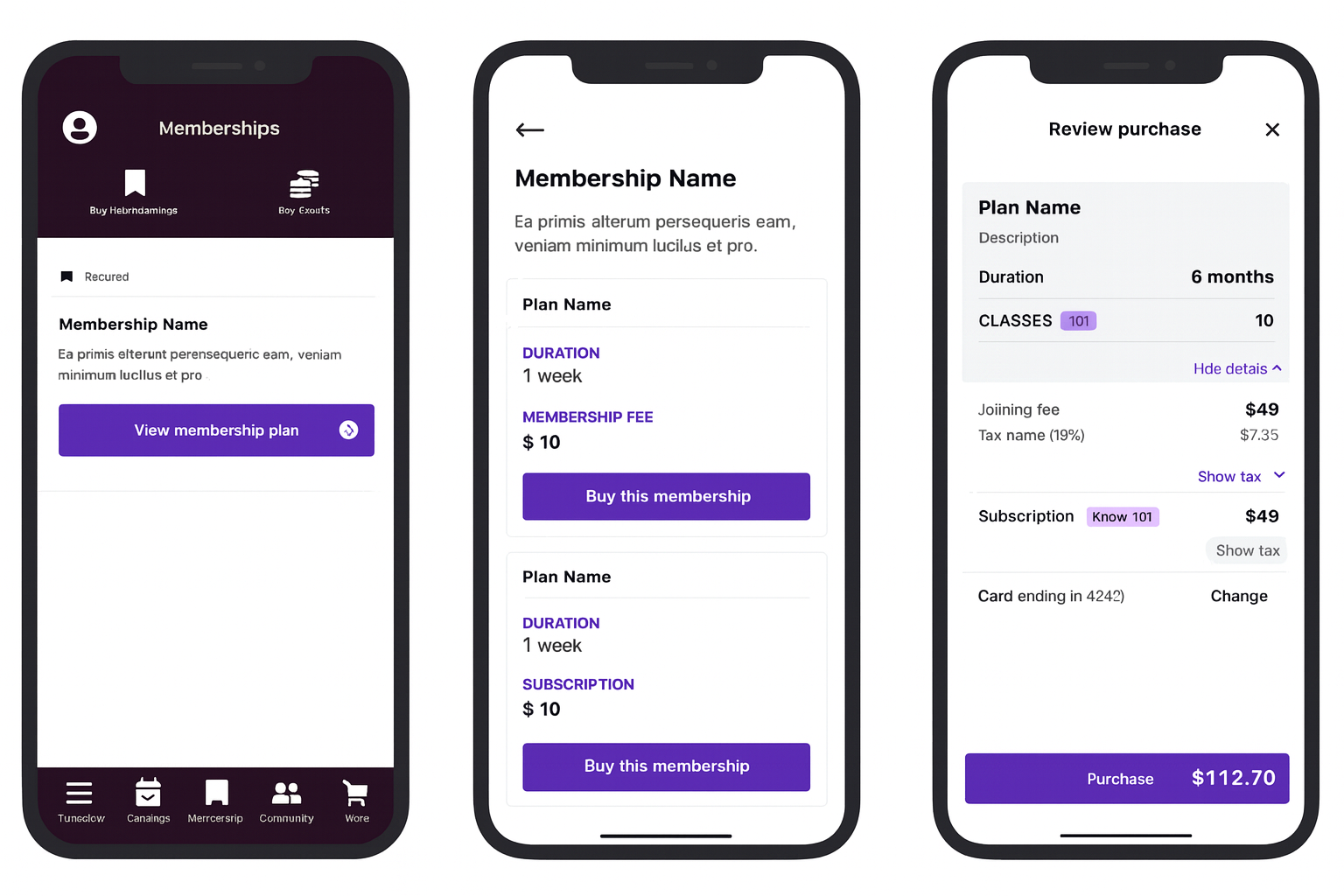
Important
For more information, access the Electronic Agreements section on the API reference.
GET: Membership Terms & Conditions
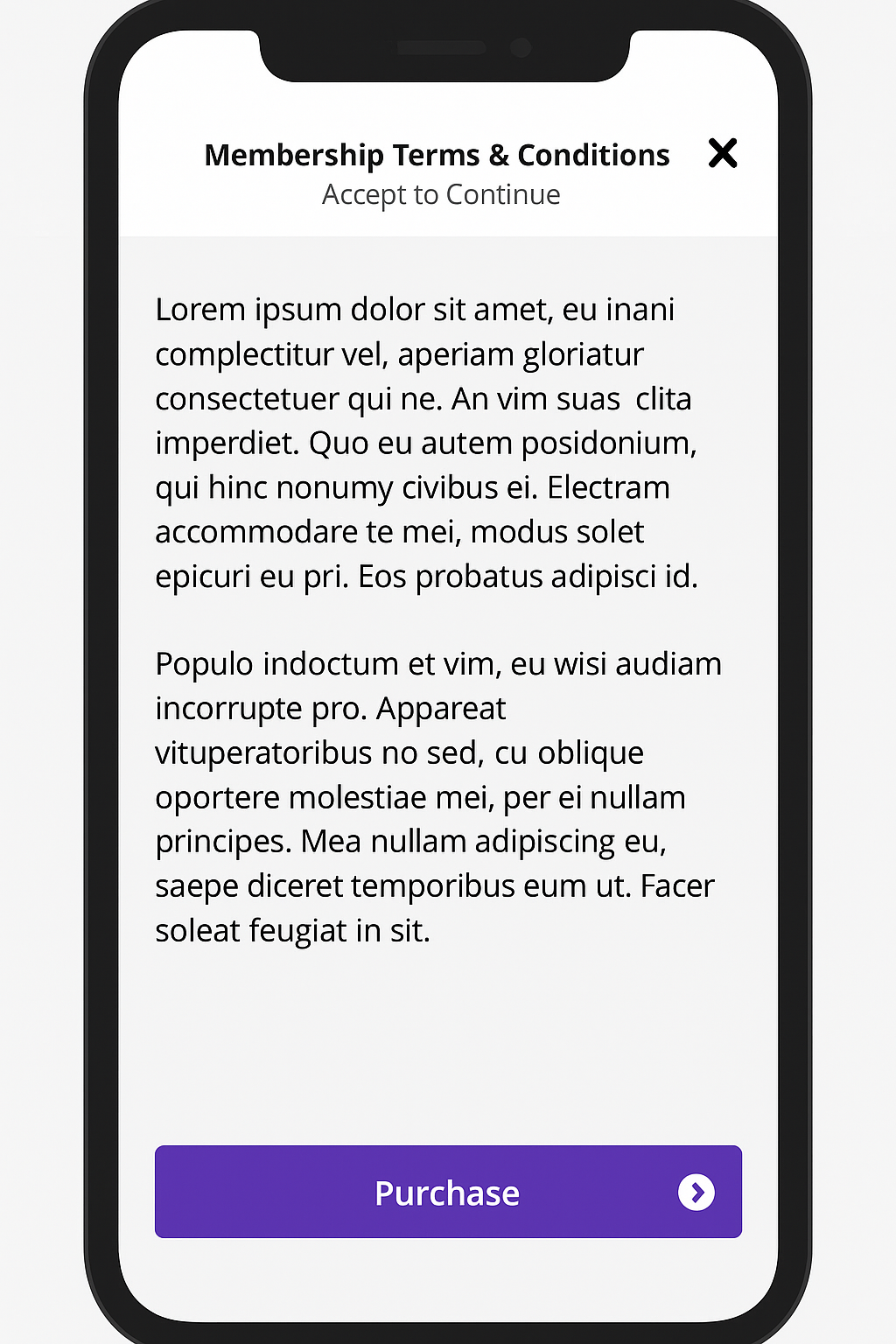
You can obtain the membership terms and conditions from the same electronic agreements endpoint used for waivers.
- Endpoint:
/2.3/branches/{branchId}/agreements/template/trigger/{trigger} - Method:
GET - Content-Type:
application/json
Electronic Signature
If you wish to enable electronic signature during onboarding, the membership purchase must be completed before collecting the signature. Typically, the signature prompt appears on the subsequent screen. For implementation guidance on this flow, please contact the support team.
Add tax_id and address to a Member
You can add a tax_id and address to a member during the lead capture process. This information is stored in the metadata field of the member's profile.
Important
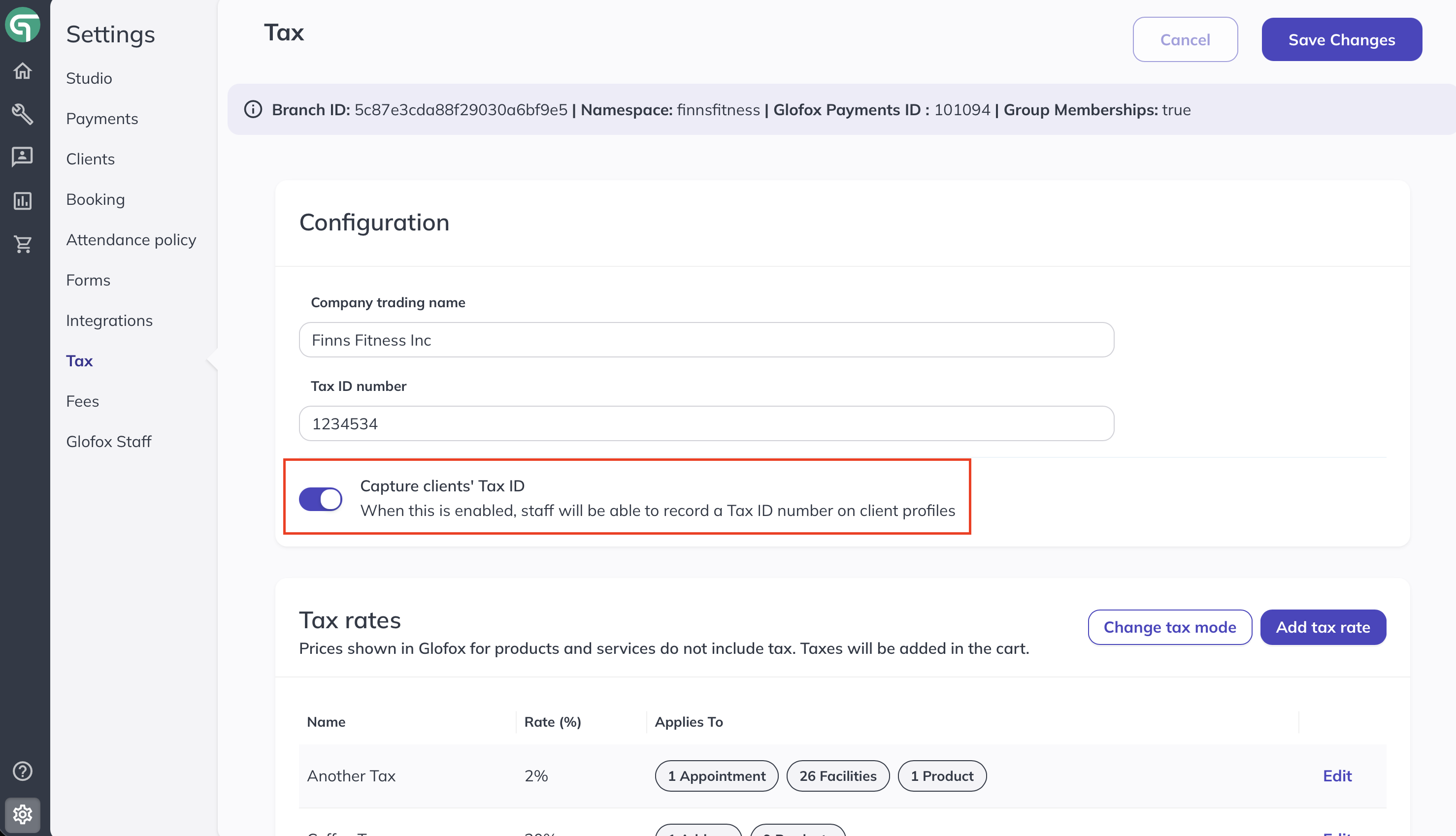
To enable the tax_id field for your branch, you need to enable the Capture Client's Tax ID on Settings > Tax in the Glofox dashboard. If this feature is disabled, the tax_id field will not appear in the client's Details tab.
- Endpoint:
/2.1/branches/{branchId}/leads - Method:
POST - Content-Type:
application/json
Warning
The tax_id only work with the 2.1 endpoints, it won't work with the 2.0 endpoints.
Request body:
{
  "first_name": "John",
  "last_name": "Doe",
  "gender": "M",
  "email": "user@example.com",
  "birth": "1992-08-01",
  "metadata": {
    "fiscal": {
      "tax_id": "1234567890"
    }
  },
  "consent": {
    "email": {
      "active": true
    },
    "sms": {
      "active": true
    },
    "push": {
      "active": true
    },
    "phone_call": {
      "active": false
    },
    "whatsapp": {
      "active": false
    }
  },
  "address": {
    "street": "Street 1",
    "city": "New York",
    "state": "New York",
    "country": "USA",
    "postal_code": "1234-887",
    "country_code": "USA"
  }
}
Response:
{
  "success": true,
  "user": {
    "membership": {
      "type": "payg"
    },
    "first_name": "John",
    "last_name": "Doe",
    "phone": "",
    "email": "user@example.com",
    "branch_id": "BRANCH_ID",
    "birth": "1992-08-01",
    "gender": {
      "name": "M",
      "label": "MALE"
    },
    "answers": [],
    "type": "member",
    "active": true,
    "emergency_contact": null,
    "lead_status": null,
    "WAIVER": false,
    "address": {
      "street": "Street 1",
      "city": "New York",
      "state": "New York",
      "country": "USA",
      "postal_code": "1234-887",
      "country_code": "USA"
    },
    "login": "user@example.com",
    "namespace": "example_namespace",
    "consent": {
      "email": { "active": true },
      "sms": { "active": true },
      "push": { "active": true },
      "phone_call": { "active": false },
      "whatsapp": { "active": false }
    },
    "modified": 1771856584,
    "created": 1771856584,
    "categories": [],
    "origin_branch_id": "ORIGIN_BRANCH_ID",
    "metadata": {
      "twilio": {
        "phone_number": ""
      }
    },
    "name": "John Doe",
    "_id": "USER_ID",
    "image_url": null
  }
}
Update a member
You can also update the tax_id and address of an existing member using the 2.1/branches/{branchId}/members/{memberId} endpoint. The same rules and structure apply as in the lead capture process.
If you wish to enable electronic signature during onboarding, complete the membership purchase before collecting the signature. Typically, the signature prompt appears on the subsequent screen. For implementation guidance on this flow, please contact the support team.